AutoCAD has been equipped with attributes for a considerable period of time, even predating my own usage. This long-standing feature, while not novel, has proven its reliability and effectiveness in our increasingly data-centric environment. The focus on data, including its capture and analysis, has only served to underscore the importance of attributes in fortifying the integrity and value of an EDMS (Engineering Document Management System).
What a Block Attribute Is
Let's put these concepts into practice. In AutoCAD, a block is a group of drawing objects, and an attribute is text that is embedded in a block. You can think of the attribute as a tag or label that can be filled in when the block is inserted. This is particularly useful when you need to create an item list for drawings that contain multiple instances of blocks, such as those representing electrical or mechanical components. In the context of an EDMS, we are particularly interested in sheet frames as title blocks, where attributes can be used to capture crucial title data, making it easier to manage and search for specific documents.
Every attribute has three parts, and every command that touches attributes asks for them by name:
- Tag. The name of the field, written without spaces, such as DWG_NO or REV. The tag identifies the attribute inside the block definition, and it is what an external system reads.
- Prompt. The question AutoCAD asks when the block is inserted, such as "Drawing number?".
- Value. The text entered in answer, which is what prints on the sheet. The attribute definition carries a default that pre-fills it.
The tag stays the same on every insert of the block. The value changes with each one, and that is what lets a single title block definition serve a whole drawing set.
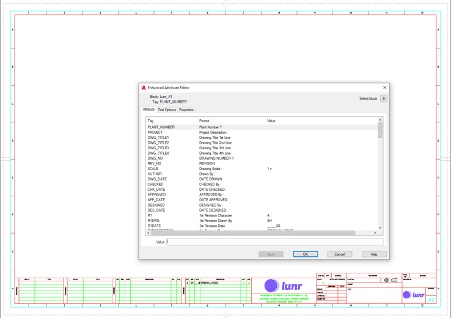
Defining an Attribute with ATTDEF
When you've drawn your sheet frame, and before defining the block (with the BLOCK command), attributes are created in the title line positions, similarly to adding text (ATTDEF). The attribute properties determine size, position, and even the default value. The benefit is that the title lines can be prompted for completion when your sheet is inserted (INSERT). Be aware, however, that this can be turned off (ATTREQ), or the block can be exploded (EXPLODE) after insertion. The system could be better, but the purpose and intent are understood by most users and organisations motivated to use attributes and appreciate the value and significance of the captured title metadata.
The order of those steps matters, so in full:
- Draw the sheet frame.
- Run ATTDEF, fill in the tag, prompt, and default value for one title line, and place it where that text belongs. Repeat for every field the title block prints.
- Select the frame and the attribute definitions together, then run BLOCK. Pick the attribute definitions in the order you want to be prompted in, because that sets the prompt sequence.
- Run INSERT to place the sheet, and answer the prompts.
The ATTDEF dialogue also carries the attribute modes, and two of them change what an external system sees. Constant fixes the value in the block definition, so it is identical on every insert and cannot be edited afterwards, which suits a field like sheet size and ruins one like the drawing number. Invisible keeps the value in the file without printing it on the sheet, which is a way to carry data a reader does not need to see. The remaining two are conveniences: Preset fills the default without stopping to prompt, and Verify asks the user to confirm what they typed.
Two system variables decide what happens on insert. ATTDIA controls whether the values are collected in a dialogue or at the command line. ATTREQ set to 0 skips the prompting entirely and accepts the defaults, which is how a set of sheets ends up carrying the same placeholder drawing number.
EXPLODE is the other way the data goes. Exploding a block with attributes turns the values back into attribute definitions displaying their tags, so the drawing number on the sheet reverts to reading DWG_NO and the value is gone.
Editing Attributes After Insertion
Attribute values and attribute definitions are edited by different commands, and reaching for the wrong one is the usual source of frustration.
- ATTEDIT edits the values on a block reference already placed in the drawing. The command-line form, -ATTEDIT, edits values across many references at once, which is how you correct the same field on a whole set of sheets rather than one at a time.
- EATTEDIT opens the Enhanced Attribute Editor for a single block reference, where the value sits alongside its text options and properties. Double-clicking a block that has attributes takes you to the same place.
- BATTMAN, the Block Attribute Manager, edits the block definition rather than any one insert. Use it to change a tag or a prompt, reorder the prompt sequence, or remove an attribute from the block.
- ATTSYNC pushes a changed definition out to the block references already placed, so existing sheets pick up an added or renamed attribute instead of keeping the old set.
DATAEXTRACTION reads the attribute values back out, into a table on the drawing or a file you can open in a spreadsheet. That is how the item list described above gets built without anybody counting blocks by hand.
Attributes in the Title Block
The sheet frame is where attributes earn their keep, because a title block is a fixed set of fields printed in the same place on every sheet in a set. Give each of those fields an attribute rather than plain text, and the sheet stops being a picture of its own metadata.
The fields worth attributing are the ones people search on: drawing number, title, revision, discipline, sheet size, scale, and the names and dates for who drew, checked, and approved the sheet. They are also the columns a drawing register carries, which is the point: attribute them once and the register fills from the sheet. Revision is the one that moves most, since it changes at every issue, and a REV attribute is what lets a system write the current revision back into the sheet instead of relying on somebody to retype it. See drawing revision numbering for what belongs in that field and when it changes.
Feeding Attributes into a Drawing Management System
For ease of data capture and improved data consistency, the engineering document management system should be able to automatically retrieve title attributes from drawings and use this to populate EDMS metadata, avoiding re-entering the title data, saving time and ensuring that titles in the EDMS accurately reflect drawing titles. Systems such as Lunr and Meridian include this capability. Meridian refers to this as 'synchronising properties', while Lunr automates this feature when uploading documents. Behind the scenes, these systems maintain a mapping table that associates drawing attributes with their matching EDMS properties, ensuring valuable title data reliably populates the EDMS.
The mapping is why the tag matters more than the printed text. A system reads DWG_NO, not the words next to it, so a block whose tags follow one convention across the whole drawing set maps once and keeps working. A set where the same field is tagged DWG_NO on some sheets and DRAWING_NUMBER on others needs the mapping maintained by hand for as long as both survive.
An EDMS's actual value and success lie in the trust and confidence it instils in its users. A key factor in this is the ability to search for documents with the assurance that search terms accurately reflect drawing titles, leading to consistent results. Title block attributes with automated EDMS input are a pivotal element in this process, bolstering user confidence in the system's reliability and accuracy.
Please get in touch with us if you want to obtain some samples of attributed title sheets (A1, A2, A3) that may serve as practical examples.